
Basic Navigation (Desktop)
Bookstack's layout can be split into 5 sectors
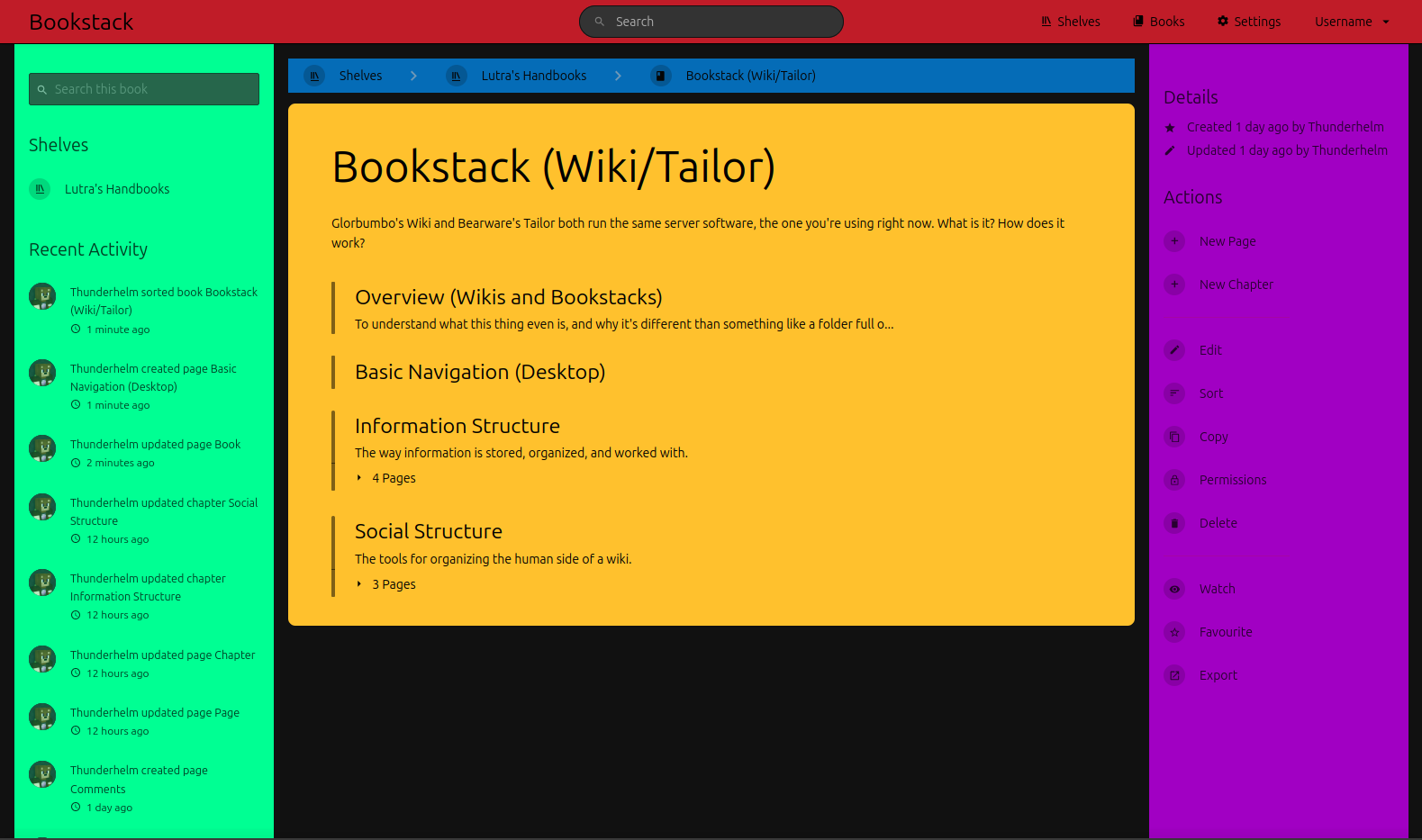
Blue - The Current Path. This mainly tells you the path you took through the website to get to what you are viewing. In the example, you went from the Shelves to the Lutra's Handbooks shelf, then to the Bookstack book. All locations in the path act as buttons quickly go to that segment on the path.
Yellow - The Viewer. This shows you a view of what you are currently on. In the example above, this is a view of a book, specifically the Bookstack handbook. If you were on a page, it would give you a page view instead.
Purple - Actions Menu. These are the buttons to press if you would like to alter what you are viewing in some way. Editing, copying, permissions, sorting, etc. Some actions wont change what you are viewing and instead track it, such as the Watch and Favorite actions. Your action menu is the bar you use to do things.
No comments to display
No comments to display